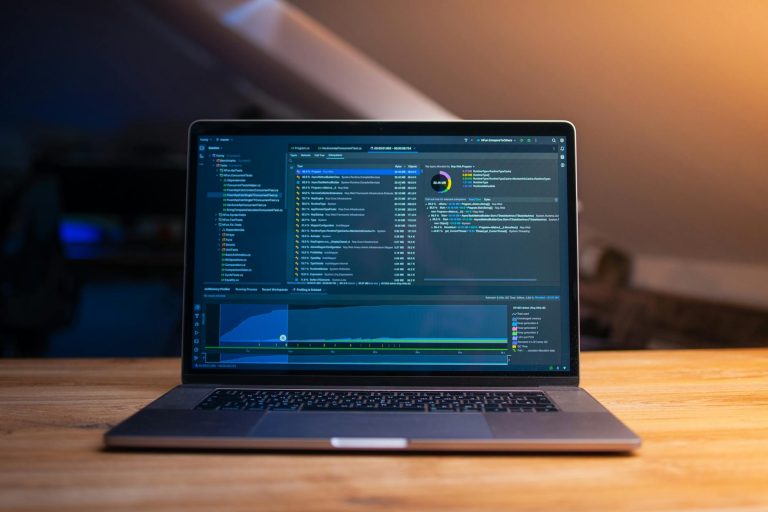
Improve Your Website Performance and Make It Faster: Step-By-Step
To improve your website performance and make it faster, start by running a speed test to find your biggest bottlenecks, then work through image optimization, caching, code minification, and server upgrades in order of impact. A faster site earns higher Google rankings, lower bounce rates, and more conversions. This guide walks you through every practical step, from testing to advanced server tuning, so you know exactly what to do and in what order.

1. How to Test Website Performance Before You Fix Anything
You cannot improve what you have not measured. Before touching a single file, run a proper website performance test so you have a baseline. Knowing your starting score makes it easy to prove progress later and tells you which problems are worth fixing first.
The most reliable free tools for a website speed test are:
- Google PageSpeed Insights – Gives you a Core Web Vitals score and field data from real Chrome users. Search “PageSpeed Insights” and paste your URL. Pay attention to Largest Contentful Paint (LCP), Interaction to Next Paint (INP), and Cumulative Layout Shift (CLS).
- Google Search Console – The Core Web Vitals report shows which pages have “Poor” status in the real world, not just in a lab test.
- GTmetrix – Lets you test from multiple global locations and gives a waterfall chart so you can see exactly which resources are slow.
- WebPageTest – The gold standard for in-depth website speed test results. Test on real devices over a real connection.
When you run your website performance test, use a consistent location and connection type every time. Test your homepage AND a representative inner page. Inner pages are often slower because they carry more plugins and dynamic content. Record your scores in a simple spreadsheet so you have a clean before-and-after comparison once you start optimizing.
According to Google Search Central, page experience signals including Core Web Vitals are used as ranking factors, which means your speed test results directly affect your organic visibility. Do not skip this step.
2. How to Improve Website Performance With Image Optimization
Images are the single largest drain on page speed for most websites. A site that has not been optimized for images can be carrying megabytes of unnecessary data on every page load. Image optimization is one of the highest-ROI website performance improvement techniques available, and it costs nothing except a bit of time.
Here is exactly how to handle image optimization:
- Convert to modern formats. Replace JPEG and PNG files with WebP or AVIF. WebP files are typically 25-35% smaller than comparable JPEGs with no visible quality loss. Most modern browsers support WebP natively.
- Compress before uploading. Use a tool like Squoosh or ShortPixel to compress images before they ever hit your server. Target file sizes under 100 KB for most web images.
- Set explicit width and height attributes. This prevents layout shift (CLS) because the browser knows how much space to reserve before the image loads.
- Implement lazy loading. Add
loading="lazy"to all images below the fold. The browser then defers loading those images until the user scrolls toward them, making the initial page load dramatically faster. - Use a CDN for image delivery. A content delivery network serves your images from a server physically close to each visitor, cutting latency on every request.
- Resize images to their display size. If an image displays at 600px wide, there is no reason to upload a 3000px original. Resize first, then compress.
On WordPress, plugins like Imagify or EWWW Image Optimizer automate most of this. They convert, compress, and serve WebP automatically. If you want a full audit of every image issue slowing your site, the WordPress website speed optimization service guide walks through every image-specific fix in detail.
3. Enable Browser Caching and Server-Side Caching
Caching is one of the most effective website speed optimization techniques because it stops your server from rebuilding the same page from scratch on every single visit. When caching is set up correctly, returning visitors and even first-time visitors from shared locations experience dramatically faster load times.
There are two main caching layers to configure:
- Browser caching. You tell the visitor’s browser to store static assets like CSS, JavaScript, and images locally for a set period. The next time they visit, those files load from their own machine instead of your server. Set cache headers with long expiry times (one year is common for assets with versioned filenames).
- Server-side page caching. Instead of dynamically building each HTML page on every request, your server stores a pre-built HTML file and serves that. On WordPress, plugins like WP Rocket, W3 Total Cache, or LiteSpeed Cache handle this with minimal configuration.
- Object caching. For database-heavy sites, add a Redis or Memcached layer to cache database query results. This cuts server response time significantly on high-traffic pages.
Caching alone can cut your Time to First Byte (TTFB) in half on a shared hosting environment. It is a foundational step in any website performance improvement plan. If you skip it, every other optimization you make will have less impact than it should.
4. Code Optimization: Minify CSS, JavaScript, and HTML
Every unnecessary character in your code files adds to the total data your visitors must download. Code optimization is the process of stripping out whitespace, comments, and redundant characters without changing what the code actually does. It is a standard website performance optimization technique that applies to every site, regardless of platform.
The key code optimization steps are:
- Minify CSS and JavaScript. Minification removes spaces, comments, and line breaks. A 200 KB JavaScript file can often be reduced to 140 KB or less. On WordPress, WP Rocket and Autoptimize handle this with a checkbox.
- Combine files where sensible. Fewer HTTP requests mean faster pages. Combining multiple CSS files into one reduces the number of round trips to the server. Be careful with JavaScript combining because it can break scripts if done carelessly.
- Eliminate render-blocking resources. JavaScript and CSS in the
<head>of your page can delay rendering. Move non-critical JavaScript to the footer or usedeferandasyncattributes. Load non-critical CSS asynchronously. - Remove unused CSS and JavaScript. Tools like Chrome DevTools Coverage tab show exactly how much of your loaded CSS and JS is actually used on each page. Unused code is pure overhead. Consider tools like PurgeCSS to strip what is not needed.
- Inline critical CSS. The styles needed to render above-the-fold content can be inlined directly into the HTML so the browser paints the visible page immediately without waiting for an external stylesheet to download.
Code optimization is one of those website speed-up techniques that compounds with every other change you make. A leaner codebase means caching works better, CDN delivery is faster, and your mobile users download less data on every visit.

5. How to Increase Website Speed With a Content Delivery Network
A content delivery network (CDN) is one of the most powerful tools for increasing website speed, especially for sites with visitors spread across a wide geography. Instead of every request traveling to your origin server, a CDN copies your static assets to dozens or hundreds of edge nodes around the world and serves them from whichever node is physically closest to each visitor.
Here is how to make website load times faster using a CDN:
- Cloudflare is the most widely used CDN for small to mid-size websites. Its free plan offers global edge caching, DDoS protection, and automatic minification. The Cloudflare Speed tab in your dashboard has one-click settings for “Auto Minify” and “Rocket Loader” that reduce JavaScript execution time.
- KeyCDN and BunnyCDN are affordable alternatives with strong performance for WordPress sites. They integrate easily with caching plugins.
- CDN and Core Web Vitals. A CDN directly improves LCP (Largest Contentful Paint) because your main image and hero content load from a nearby server. It also reduces TTFB, which is one of the first things Google measures when evaluating page experience.
To get the most out of a CDN, make sure your cache-control headers are correctly set so the CDN caches your assets aggressively. Also enable HTTP/2 or HTTP/3 on your CDN if available. These protocols allow multiple requests to travel over a single connection, further cutting load times.
If you want to go deeper on the SEO side of speed improvements, Search Engine Journal regularly covers how technical performance factors affect search rankings, and their analysis is worth bookmarking for ongoing reference.
6. Mobile Optimization: How to Make Your Website Load Faster on Mobile
More than half of all web traffic comes from mobile devices, and Google uses mobile-first indexing, meaning the mobile version of your site is the primary version Google evaluates for ranking. Learning how to make your website load faster on mobile is not optional anymore. It is a core part of any website performance optimization plan.
Steps to improve mobile website speed:
- Use a responsive design. Your site should adapt fluidly to any screen size. A responsive theme eliminates the need for a separate mobile site and reduces maintenance overhead.
- Reduce font weight. Loading large font families with multiple weights and styles adds significant overhead. Limit yourself to two font families and load only the weights you actually use. Self-host fonts where possible to avoid third-party DNS lookups.
- Avoid intrusive interstitials. Pop-ups that cover the main content on mobile are penalized in Google’s mobile-first index. They also cause layout shift, which hurts your CLS score.
- Optimize for touch and viewport. Make sure your viewport meta tag is set correctly and that tap targets are large enough. This is a usability issue but it also affects user engagement signals that Google tracks.
- Test in Chrome DevTools. The DevTools mobile emulator lets you simulate slow 3G connections and see exactly how your site performs for mobile visitors in lower-connectivity areas. This is one of the simplest ways to make websites load faster in Google Chrome testing environments and spot real-world problems before they affect your rankings.
- Defer offscreen images aggressively on mobile. Mobile data connections are slower, so lazy loading has an even bigger impact on mobile than it does on desktop.
For WordPress-specific mobile speed fixes, the WordPress speed optimization guide covers mobile-specific caching configurations and plugin settings in detail.
7. Advanced Server Optimization Techniques
If you have done the basics and your scores are still lagging, the problem is often at the server level. Advanced server optimization is where you squeeze out the remaining performance gains that plugin settings and image compression cannot deliver on their own.
Key server optimization techniques include:
- Upgrade your hosting environment. Shared hosting puts your site on a server with hundreds of other sites competing for the same CPU and RAM. Moving to a VPS (Virtual Private Server) or managed WordPress hosting like Kinsta or WP Engine typically cuts TTFB by 50-70% on its own. This is the single highest-leverage server change most small sites can make.
- Enable GZIP or Brotli compression. Server-side compression reduces the size of HTML, CSS, and JavaScript files before they are sent to the browser. Brotli is newer and achieves better compression ratios than GZIP on most content types. Most modern web servers and CDNs support both.
- Upgrade to HTTP/2 or HTTP/3. HTTP/2 allows multiplexing, which means multiple files travel over one connection simultaneously. HTTP/3, built on QUIC, is even faster over unstable connections. Check your hosting control panel or CDN settings to enable these protocols.
- Optimize your database. On WordPress and other CMS platforms, databases accumulate overhead over time. Stale post revisions, spam comments, orphaned metadata, and transient options all slow down queries. Use a plugin like WP-Optimize or run manual SQL cleanup routines on a schedule.
- Configure proper DNS TTL values. Lower DNS TTL values speed up propagation but slightly increase DNS query load. For established sites, a moderate TTL of 3600 seconds is fine. Use a fast DNS provider like Cloudflare or AWS Route 53 to reduce DNS lookup latency.
- Use a PHP version that is current. PHP 8.2 and 8.3 are significantly faster than PHP 7.x versions. On WordPress, upgrading PHP is a one-click change in most hosting control panels and can shave hundreds of milliseconds off every dynamic request.
These server-level changes are where professional website performance optimization tools and services often uncover the most dramatic improvements. After you have made these changes, re-run your website speed test to confirm the impact and document your gains.
8. WordPress-Specific Speed Improvements
If your site runs on WordPress, you have a few platform-specific levers that general guides often skip. WordPress is powerful, but it can accumulate technical debt fast, especially when plugins are added and removed over time.
Here is how to increase website speed on WordPress specifically:
- Audit your plugins. Every active plugin adds PHP execution time and often loads its own CSS and JavaScript on every page, whether those assets are needed or not. Deactivate and delete plugins you are not actively using. Use Asset CleanUp or Perfmatters to disable specific plugin scripts on pages where they are not needed.
- Choose a lightweight theme. Bloated page-builder themes load enormous amounts of CSS and JavaScript. Switching to a lean theme like GeneratePress or Kadence can cut initial page weight by 50% before you change anything else.
- Use a page caching plugin properly. WP Rocket is the most complete all-in-one solution and handles caching, minification, lazy loading, and preloading with minimal configuration. LiteSpeed Cache is the better choice if your host runs the LiteSpeed web server.
- Preload critical resources. Add
<link rel="preload">hints for your largest contentful paint element, typically your hero image or main font. This signals to the browser to fetch those resources immediately rather than discovering them partway through parsing the HTML. - Limit post revisions and scheduled cleanup. Add
define('WP_POST_REVISIONS', 5);to your wp-config.php to cap revisions at five per post. Schedule a weekly database cleanup to remove expired transients and other overhead.
For a structured checklist of SEO improvements that go beyond speed, including structured data, meta tags, and internal linking, the WordPress SEO improvements guide covers 13 specific actions you can take on your WordPress site today.
If you want to understand how automated WordPress blog publishing fits into a complete performance and content strategy, AutoRankr handles the content side so you can stay focused on technical improvements.
9. How Site Speed Directly Affects SEO Rankings
Website performance optimization is not just a user experience issue. It is a direct SEO signal. Google has confirmed that page speed is a ranking factor for both desktop and mobile search. Slow pages lose rankings, and slow pages lose conversions, which sends further negative engagement signals back to Google.
The connection between speed and SEO works on several levels:
- Core Web Vitals are a ranking signal. Google’s page experience update made CWV a confirmed factor. Sites that score “Good” on LCP, INP, and CLS have a measurable edge over sites with “Poor” scores, all else being equal.
- Bounce rate and dwell time. Studies cited by Ahrefs consistently show that pages loading in under two seconds have significantly lower bounce rates than pages taking four or more seconds. When visitors bounce immediately, Google infers the page did not satisfy the query.
- Crawl budget. For large sites, Googlebot has a limited crawl budget. Slow servers mean fewer pages get crawled per day. Speeding up your server response means Google can index more of your content faster.
- Mobile-first indexing. Since Google indexes the mobile version of your site first, mobile speed directly controls your overall ranking potential, not just your mobile rankings.
If you are already working on your content strategy and want to make sure your SEO and rankings signals are aligned, on-page SEO for WordPress covers ranking signals beyond speed that compound with your performance improvements.
Speed and content quality work together. A fast site with thin content still loses to a fast site with authoritative, well-structured content. Both levers need to be pulled. To see how AutoRankr can help you produce consistent, SEO-optimized content on a schedule while you focus on technical optimization, explore what the platform does for local service businesses today.
10. Ongoing Monitoring and Website Performance Optimization Tools
Improving website performance is not a one-time project. New plugins get added, images get uploaded without compression, and traffic patterns shift. Ongoing monitoring ensures you catch regressions before they damage your rankings.
The most useful website performance optimization tools for ongoing monitoring include:
- Google Search Console. Check the Core Web Vitals report monthly. Google flags URLs that regress from “Good” to “Needs Improvement” or “Poor” status.
- GTmetrix Monitoring. GTmetrix offers scheduled monitoring with alerts when your page score drops below a threshold. Set it and let it email you when something breaks.
- New Relic or Datadog. For sites with complex server environments, application performance monitoring tools give you server-level visibility into slow database queries, memory usage, and PHP execution time.
- UptimeRobot. Free uptime monitoring that pings your site every few minutes and sends an alert if it goes down. Downtime and server errors can tank crawl rates and rankings quickly.
- Chrome User Experience Report (CrUX). This is the real-world field data that Google actually uses for Core Web Vitals scoring. PageSpeed Insights surfaces this data, but you can also query it directly via BigQuery for deeper analysis across your entire site.
Set a recurring calendar reminder to run a full website performance test quarterly. Compare against your baseline, note any regressions, and trace them back to recent changes. Most performance regressions are caused by a newly installed plugin, a large unoptimized image, or a third-party script that was added without checking the performance impact.
Consistent monitoring turns website performance optimization from a one-time project into a competitive advantage. Sites that stay fast over time accumulate ranking equity that newly optimized competitors cannot displace quickly.
Your site speed and your content output are the two highest-leverage levers in local SEO. You have covered the speed side in detail with this guide. For the content side, AutoRankr automates keyword-researched, city-specific blog posts directly to your WordPress site on a set schedule so your rankings keep climbing while you focus on running your business. Try AutoRankr free for 3 days, no credit card needed and see how consistent, optimized content compounds with a fast site to build lasting organic traffic.
Frequently Asked Questions
How to improve website speed and performance?
Start with a website speed test using Google PageSpeed Insights or GTmetrix to identify your biggest bottlenecks. Then work through image compression and WebP conversion, enable browser and server-side caching, minify CSS and JavaScript, add a CDN, and upgrade your hosting if needed. Each step compounds with the others, so address them in order of impact rather than randomly.
What are the 7 C’s of a website?
The 7 C’s of a website are Context, Content, Community, Customization, Communication, Connection, and Commerce. They are a framework from early e-commerce research describing the elements that make a website effective for users and businesses. While useful for strategy, they complement rather than replace technical performance optimization, which directly affects how well visitors experience each of these elements.
What is the #1 most visited website?
Google.com is consistently the most visited website in the world, followed by YouTube and Facebook. For SEO practitioners, this matters because optimizing for Google’s quality standards, including page speed, Core Web Vitals, and helpful content, is the most direct path to driving organic traffic from the platform that sends the vast majority of search-referred visits to every other site on the internet.
How to get 1000 visitors a day to your website?
Getting 1,000 daily visitors requires a combination of technical performance, consistent content publishing, and keyword targeting. A fast-loading site earns better rankings, which drives more clicks. Publish keyword-researched content regularly, build topical authority in your niche, and earn backlinks from relevant sources. For local service businesses, city-specific content targeting local search intent is one of the fastest paths to compounding daily traffic from Google.